

WordPress Security Best Practices: Protect Your Business Website
Learn how secure hosting, reliable backups, regular updates, strong passwords, two-factor authentication, limited administrator access, trusted plugins, HTTPS, monitoring, and a documented maintenance process work together to protect a business WordPress website.
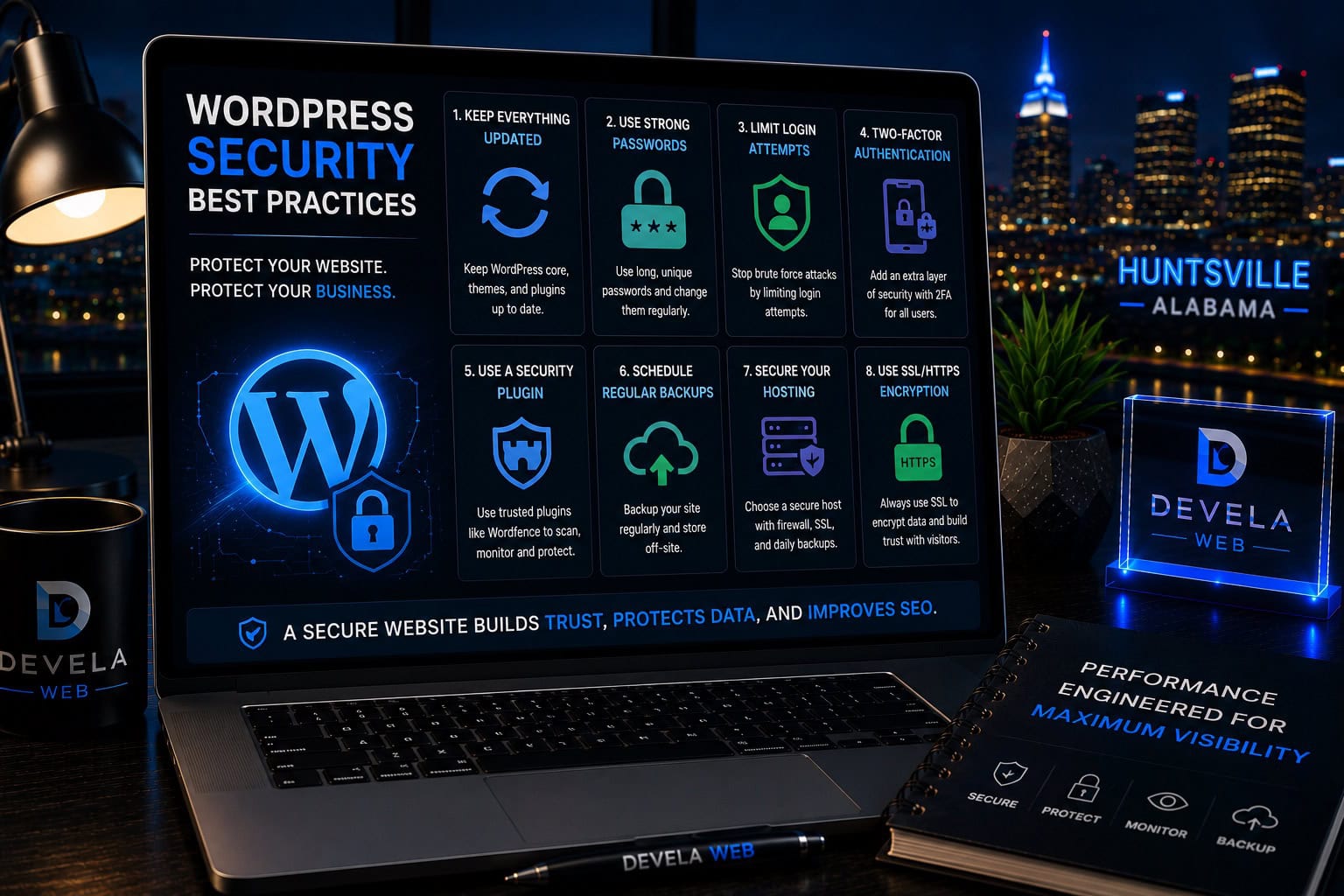
WordPress security is built through layers. Use reputable hosting, keep WordPress core, themes, and plugins updated, maintain tested offsite backups, limit administrator accounts, require strong unique passwords and two-factor authentication, remove unused software, serve the site over HTTPS, monitor for unusual activity, and document how incidents will be handled.
Is This Security Guide Right for Your Website?
This guide is for small-business owners, WordPress administrators, and marketing teams responsible for keeping a business website available, trustworthy, and recoverable. It is especially useful for sites that collect contact forms, process customer information, rely on plugins, or have several people with dashboard access.
What You’ll Learn
Security Requires Layers
Combine hosting, updates, access controls, backups, monitoring, and maintenance.
Updates Reduce Exposure
Keep WordPress core, plugins, themes, PHP, and server software current.
Access Should Be Limited
Use unique accounts, strong passwords, two-factor authentication, and least privilege.
Backups Must Be Restorable
Store independent backups and verify that the website can actually be recovered.
Trusted Software Matters
Use maintained themes and plugins and remove abandoned or unnecessary code.
Monitoring Supports Fast Recovery
Watch uptime, logins, file changes, forms, and unusual behavior.
Why WordPress Security Matters
A business website can affect customer trust, sales, search visibility, email delivery, internal operations, and the company’s reputation. Security problems can interrupt all of them at once.
Compromised websites may be redirected, defaced, used to send spam, injected with malicious code, blocked by browsers, removed from search results, or taken offline by the hosting provider.
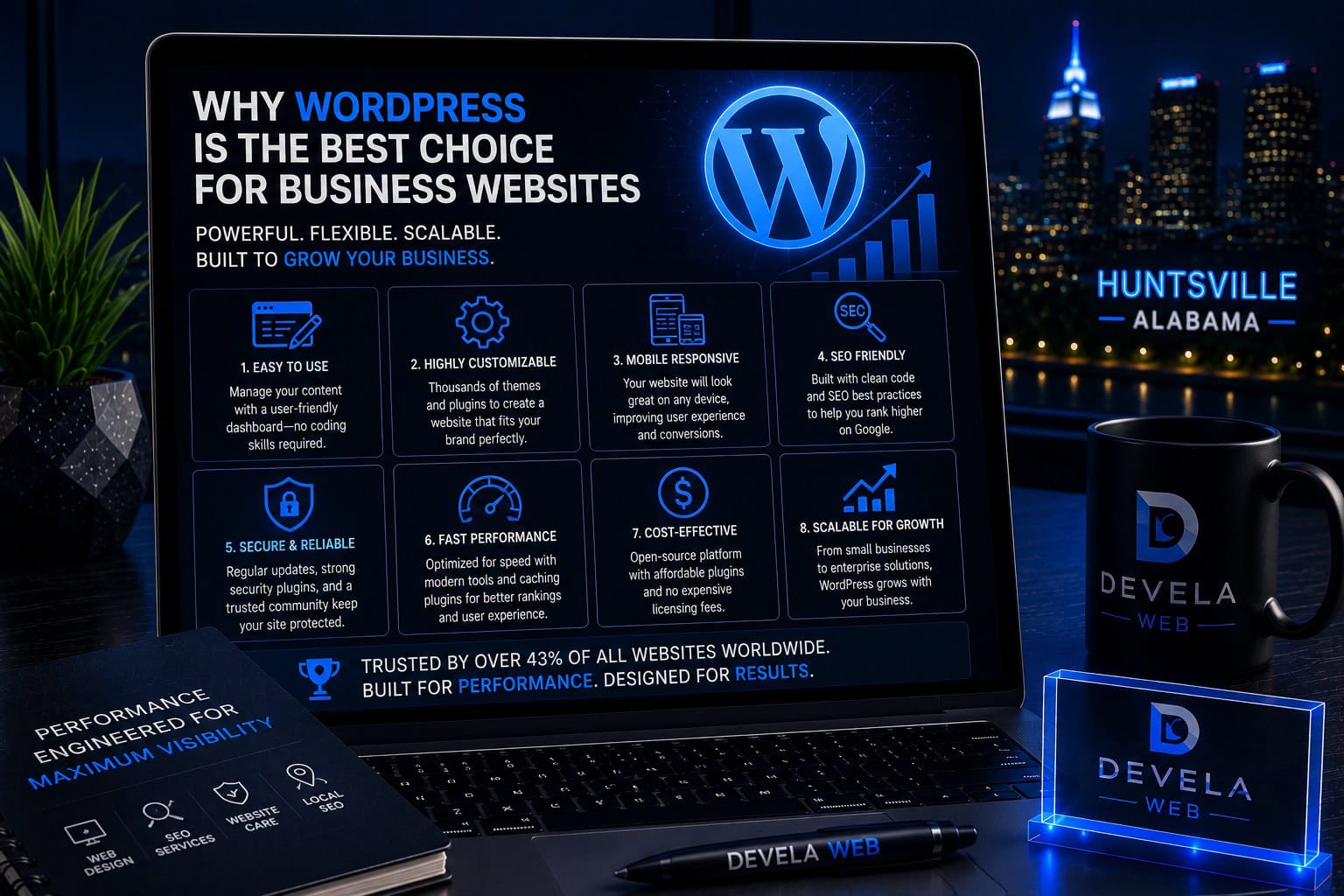
Security does not mean eliminating every possible risk. The goal is to reduce avoidable exposure, detect problems sooner, and make recovery faster and more reliable. A secure setup also supports the long-term ownership and flexibility described in our guide to why WordPress is a strong platform for business websites .
Security is an ongoing business process. A one-time plugin setup cannot replace updates, backups, access control, monitoring, and responsible administration.
Start With Secure, Well-Maintained Hosting
Hosting determines the server environment where WordPress runs. A reliable provider should maintain server software, provide SSL support, isolate accounts appropriately, monitor infrastructure, and offer dependable backup or recovery options.
Hosting security checklist
Confirm what the hosting provider actually manages. Some plans include extensive security and backups, while others leave most responsibility to the website owner.
A strong WordPress security plan begins below the dashboard, with a hosting environment that is actively maintained and recoverable.
Keep WordPress Core, Plugins, and Themes Updated
Updates often include security patches, compatibility fixes, and reliability improvements. Delaying them indefinitely leaves known problems in place.
Update priorities
- WordPress core
- Active plugins
- Active theme and parent theme
- PHP and server environment
- Premium plugin licenses
- Third-party integrations
Create a backup before higher-risk updates, especially on ecommerce, membership, booking, or heavily customized websites. Test forms, menus, checkout, mobile layouts, and critical integrations afterward.
Do not keep abandoned plugins active because replacing them is inconvenient. Unsupported software can become a long-term security and compatibility risk.
Protect User Accounts and Passwords
Every person should have an individual account. Shared administrator credentials make it difficult to control access, trace changes, or remove one person’s permissions.
Account security essentials
Administrators can install software, edit code, create users, and change important settings. Reserve that role for people who genuinely need full control.
Use Editor, Author, Shop Manager, or another limited role when full administrator access is unnecessary.
Use Two-Factor Authentication for Privileged Accounts
Two-factor authentication adds a second verification step after the password. This helps protect the account when a password is stolen, reused, guessed, or exposed through another service.
Prioritize two-factor authentication for
- WordPress administrators
- Hosting accounts
- Domain registrar accounts
- Business email accounts
- Cloud backup storage
- Analytics and Search Console
Store recovery codes securely and document who controls the authentication method. The business should not lose access because a former employee or vendor controlled the only verification device.
Choose Trusted Plugins and Themes
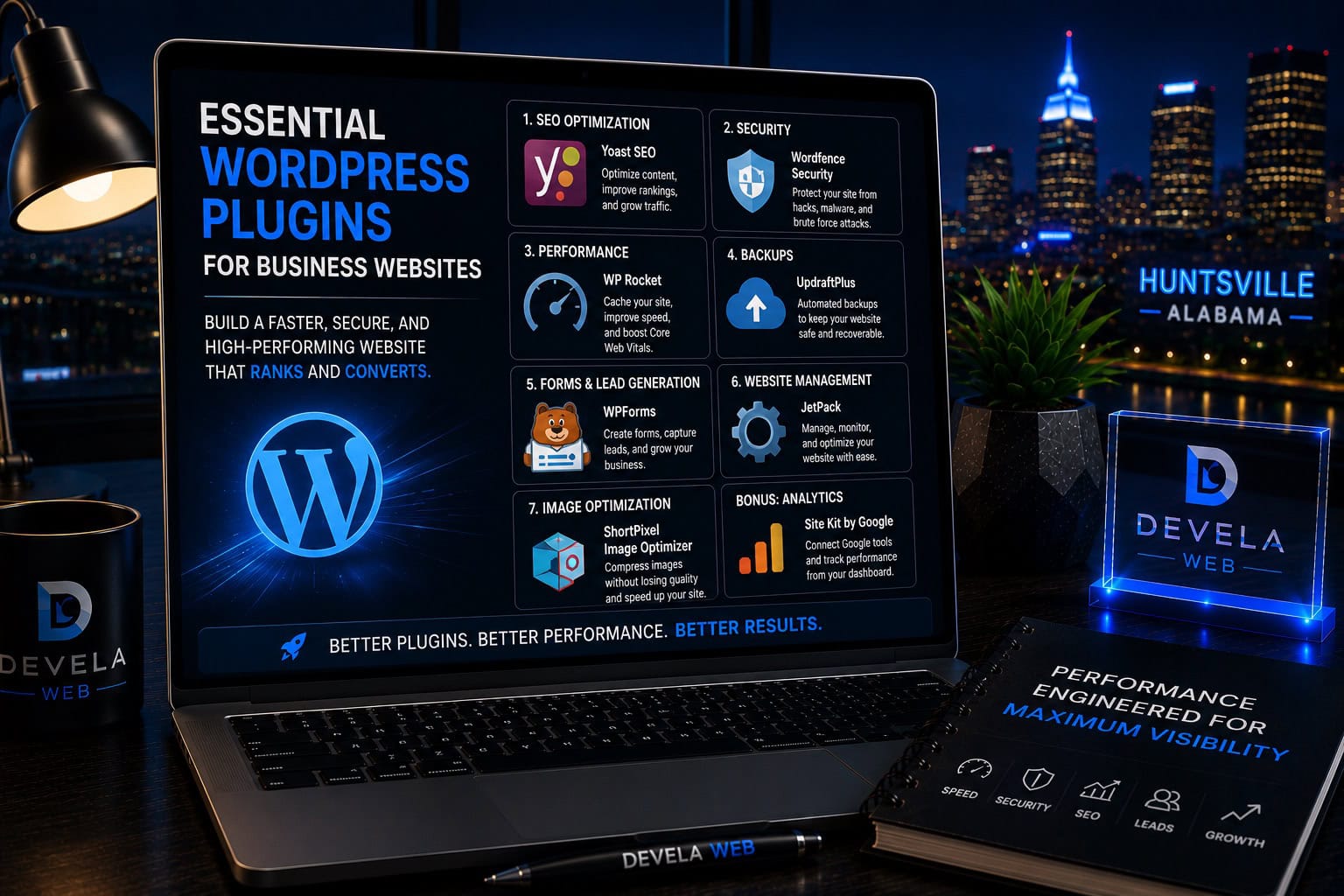
Plugins and themes extend WordPress, but they also add code that must be maintained. Use software from reputable sources with active development, clear documentation, and a credible support history. Review our guide to essential WordPress plugins for business websites before adding overlapping or unnecessary tools.
Software selection checklist
- Recently updated and maintained
- Compatible with current WordPress
- Clear developer or company ownership
- Useful documentation and support
- Reasonable permissions and data handling
- A real need that is not already covered
Remove unused plugins and themes after confirming they are not needed for active functionality. Do not install nulled or pirated premium software, which may contain malicious or altered code.
Build a Simpler WordPress Plugin Stack
Learn which plugin categories business websites need and how to avoid overlapping, abandoned, or unnecessary tools.
Read the WordPress Plugin GuideMaintain Independent, Tested Backups
A backup is the recovery layer when prevention fails. It should include the database, themes, plugins, uploads, and configuration needed to restore the website.
Backup requirements
Keep at least one backup outside the same hosting account. If the server or account becomes unavailable, a backup stored only there may not be accessible when needed.
A backup has not proven its value until the business knows it can be restored.
Use HTTPS and Secure Connections Everywhere
HTTPS encrypts information transmitted between the visitor’s browser and the website. Every public page should load securely, and HTTP versions should redirect to HTTPS.
Secure connection checklist
- Valid SSL certificate
- HTTP-to-HTTPS redirect
- No mixed-content warnings
- Secure WordPress and site URLs
- Secure forms and checkout pages
- Protected hosting and file-transfer access
Use secure SFTP or the hosting file manager instead of unencrypted FTP when the server supports it. Protect domain and DNS accounts with the same care as WordPress itself.
Protect WordPress Login and Administrator Access
Login protection should reduce automated abuse without making the website impossible for legitimate administrators to manage.
Login protection options
Changing the login URL may reduce automated noise, but it should not be treated as the primary security layer. Strong credentials, two-factor authentication, updates, and server protection remain more important.
Monitor Uptime, Changes, and Website Behavior
Monitoring helps detect problems before customers or search engines report them.
What to monitor
- Website uptime and availability
- Unexpected administrator accounts
- Failed or unusual login activity
- Unexpected file or content changes
- Broken forms and email delivery
- Browser, hosting, or search-security warnings
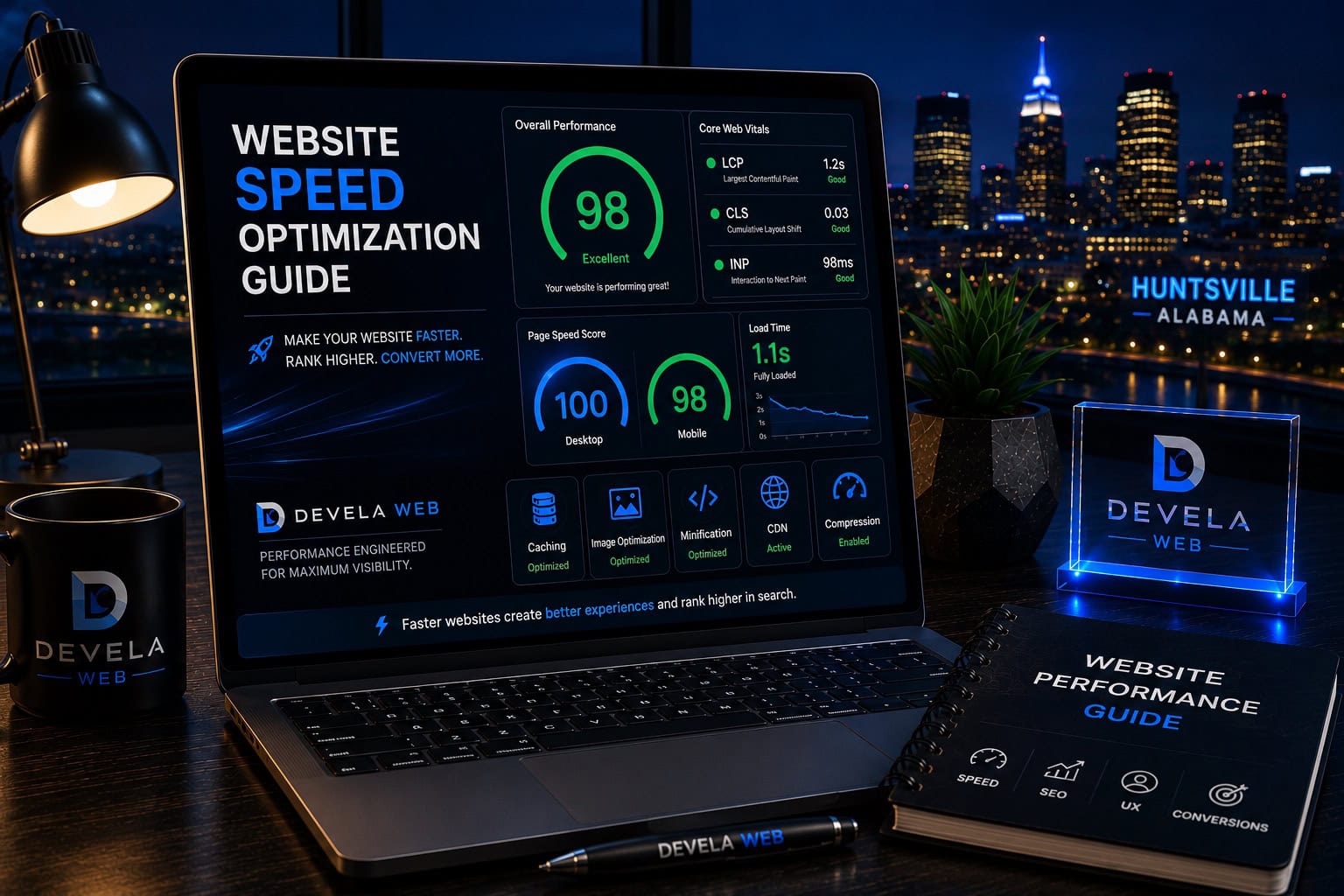
Security plugins may provide scanning, file-change detection, firewall, or login features. The correct setup depends on the host and existing protections. Avoid installing several overlapping security suites without a clear plan. Too many overlapping tools can also create the performance problems explained in our website speed optimization guide .
Send alerts to an inbox that is actively monitored. A warning provides little protection when no one sees it.
Prepare a Basic Security Incident Response Plan
A security incident is harder to manage when no one knows who controls the domain, hosting, backups, WordPress accounts, or customer communication.
Incident response should identify
If a site is compromised, avoid making random changes before creating a copy for investigation. Reset credentials, isolate the problem, identify the entry point, clean or restore the site, update all components, and verify that malicious code is no longer present.
Maintain a Safer, More Reliable Business Website
Devela Web helps businesses manage WordPress updates, backups, security checks, form testing, performance, and ongoing website maintenance.
Explore Website CareA Practical WordPress Security Maintenance Plan
Use a repeatable schedule rather than waiting for an emergency.
- Confirm domain, hosting, WordPress, and recovery-account ownership.
- Enable two-factor authentication for privileged accounts.
- Review users and remove unnecessary access.
- Verify automated offsite backups and retention.
- Apply WordPress, plugin, theme, and server updates.
- Remove abandoned, inactive, and unused software.
- Check HTTPS, SSL expiration, and mixed content.
- Review uptime, login, file-change, and malware alerts.
- Test forms, email, checkout, and critical functionality.
- Document changes and update the incident-response plan.
Verify backups, review user access, apply updates, inspect alerts, and test the website’s most important customer actions.
Common WordPress Security Questions
These are common questions business owners ask when protecting and maintaining WordPress websites.
Is WordPress secure for business websites?
WordPress can be secure when it is hosted responsibly, updated, backed up, protected with strong access controls, and monitored. Security depends heavily on implementation and maintenance.
Do I need a WordPress security plugin?
It depends on the protections already provided by the host and server. A security plugin can add useful scanning, firewall, login, or monitoring functions, but it does not replace updates, backups, secure hosting, and good account management.
How often should WordPress be updated?
Review updates frequently and apply security and maintenance releases promptly after appropriate backup and testing. Complex websites may use a staging environment before production updates.
Are inactive plugins a security risk?
Inactive plugins still exist on the server. Remove them when they are no longer needed after confirming they do not contain required data or functionality.
How many backups should a WordPress website keep?
Keep multiple restore points based on how frequently the website changes and how much data the business can afford to lose. At least one backup should be stored independently from the main host.
Does changing the WordPress login URL secure the site?
It may reduce automated login noise, but it is not a replacement for strong passwords, two-factor authentication, updates, limited accounts, and server-level protection.
What should I do if my WordPress website is hacked?
Secure access, contact the host or a qualified security professional, preserve a copy for investigation, identify the entry point, clean or restore the site, update software, reset credentials, and verify the website before returning it to normal operation.

Devela Web Editorial Team
The Devela Web Editorial Team creates practical, research-based resources covering WordPress security, website maintenance, SEO, web design, website performance, and conversion-focused digital strategy for Huntsville and North Alabama businesses.
- WordPress Security and Maintenance
- Website Backups and Recovery
- Website Performance Optimization
- SEO-Focused Website Planning