

Essential WordPress Plugins Every Business Website Needs
Learn which plugin categories matter most for a professional WordPress website, how to choose reliable tools, and why a smaller, carefully managed plugin stack is usually better than installing every feature that looks useful.
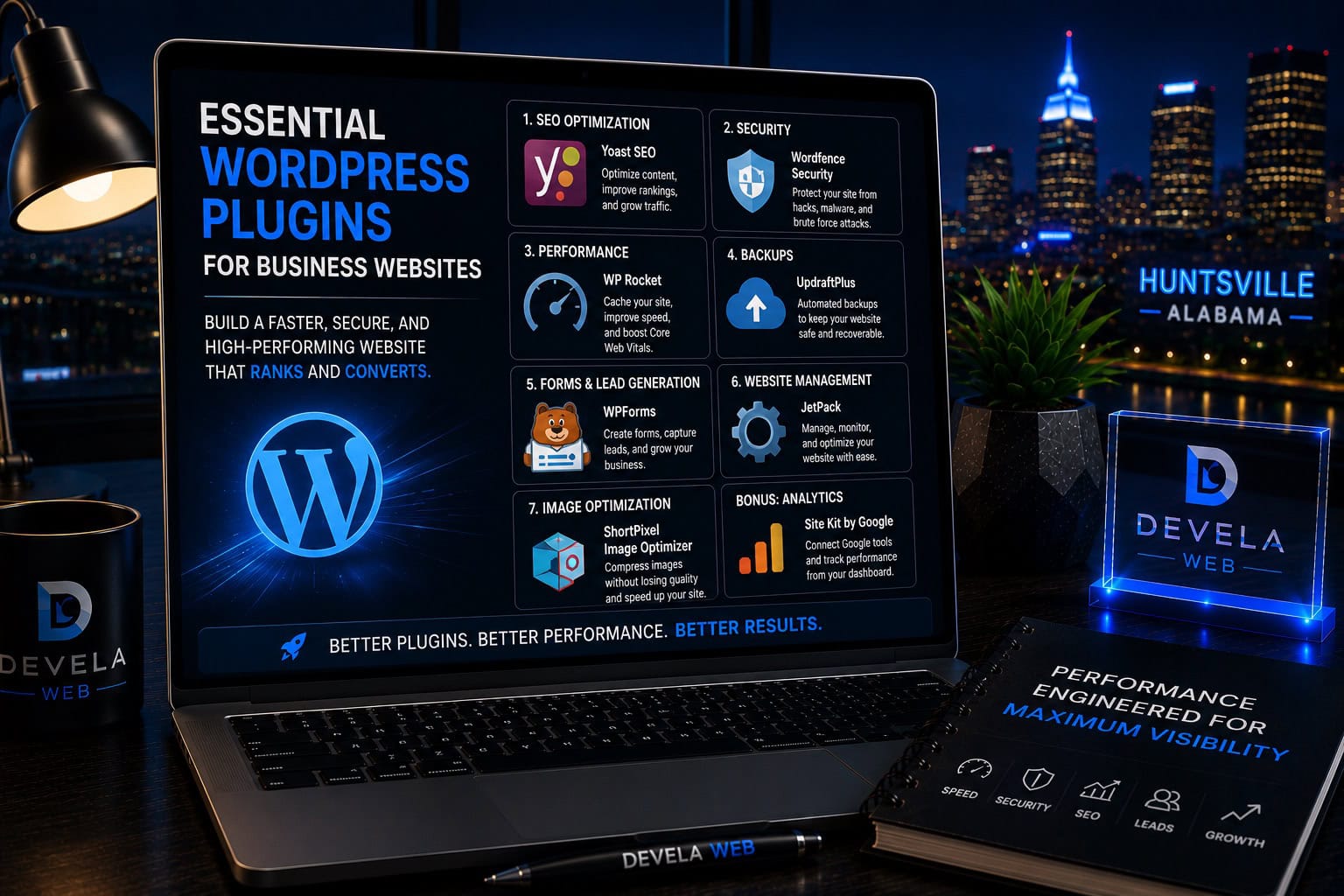
Most business WordPress websites need a dependable SEO plugin, contact form solution, backup system, email-delivery tool, image optimization, security protection, caching or performance support, analytics or tracking, and possibly redirect or schema tools. The exact plugins depend on the website, hosting environment, and features already provided by the theme or host.
Is This Guide Right for Your Website?
This guide is for small-business owners, WordPress administrators, and marketing teams that want a reliable plugin setup without overloading the website. It is especially useful when planning a new website, cleaning up an old installation, or deciding which free and premium tools are worth keeping.
What You’ll Learn
Which Plugin Categories Matter
Focus on SEO, forms, backups, email, security, performance, images, and tracking.
How to Choose Reliable Plugins
Review maintenance, compatibility, support, documentation, permissions, and real business value.
Why Fewer Plugins Can Be Better
Reduce overlapping features, conflicts, update risk, and unnecessary page assets.
When Free Tools Are Enough
Use free versions for essential functions and upgrade only when a clear business need appears.
How to Test Safely
Back up first, test critical pages, and make one major plugin change at a time.
How to Maintain the Stack
Review plugins regularly and remove tools that no longer serve a real purpose.
Build a Plugin Strategy Before Installing Tools
A WordPress plugin should solve a specific business, technical, or operational problem. It should not be installed only because the feature looks interesting.
Every plugin can add code, database activity, stylesheets, scripts, permissions, update requirements, and potential compatibility issues. That does not make plugins bad—it means each one should earn its place. This is one reason a well-planned WordPress business website should use a focused, documented plugin stack.
Ask these questions first
Choose one strong tool for each major function instead of several overlapping plugins competing to manage the same feature.
Use One Dependable SEO Plugin
An SEO plugin helps manage page titles, meta descriptions, canonical URLs, XML sitemaps, robots settings, schema, and other on-page or technical controls.
What an SEO plugin should support
- Custom titles and meta descriptions
- XML sitemap generation
- Canonical URL controls
- Index and noindex settings
- Schema and social metadata
- Breadcrumb support when needed
Yoast SEO is one established option for these functions. Other respected SEO plugins can also work well. The important decision is to use one system consistently and configure it correctly.
Do not run two full SEO plugins at the same time. Overlapping metadata, sitemap, schema, and canonical controls can create conflicts.
Install a Reliable Contact Form Plugin
Business websites usually need at least one form for inquiries, estimates, bookings, applications, support, or newsletter signup.
Form plugin essentials
WPForms Lite is a common free starting point for standard business forms, while more advanced workflows may require premium features or another specialized form tool.
A form is only useful when the submission succeeds, the visitor sees confirmation, and the business actually receives the notification.
Use a Backup and Migration Solution
Backups protect the website before updates, plugin changes, malware cleanup, hosting problems, accidental edits, and migrations.
A backup system should cover
- Database files
- Plugins and themes
- Uploaded media
- Configuration files
- Offsite storage when possible
- A tested restore process
UpdraftPlus is one widely used option for manual and scheduled backup, restore, and migration workflows. Some hosting providers also include strong server-level backups, so confirm what is already available.
Do not assume a backup works because the settings say it ran. Confirm the files exist and understand how the website would be restored.
Improve WordPress Email Delivery
WordPress websites send form notifications, password resets, order messages, account notices, and other transactional emails. Default server mail can be unreliable or poorly authenticated.
Email-delivery priorities
- Connect a reputable sending provider.
- Use authenticated SMTP or an approved API.
- Configure the correct sender address.
- Test form and password-reset messages.
- Monitor failed email when possible.
- Keep DNS authentication current.
WP Mail SMTP is one option for connecting WordPress to supported email providers and APIs. The plugin does not replace the sending provider; it helps route WordPress mail through the configured service.
Test Every Business Form After Setup
Send submissions from desktop and mobile, verify the confirmation message, and confirm delivery to the correct inbox before launch.
Request WordPress SupportAdd Security and Login Protection Carefully
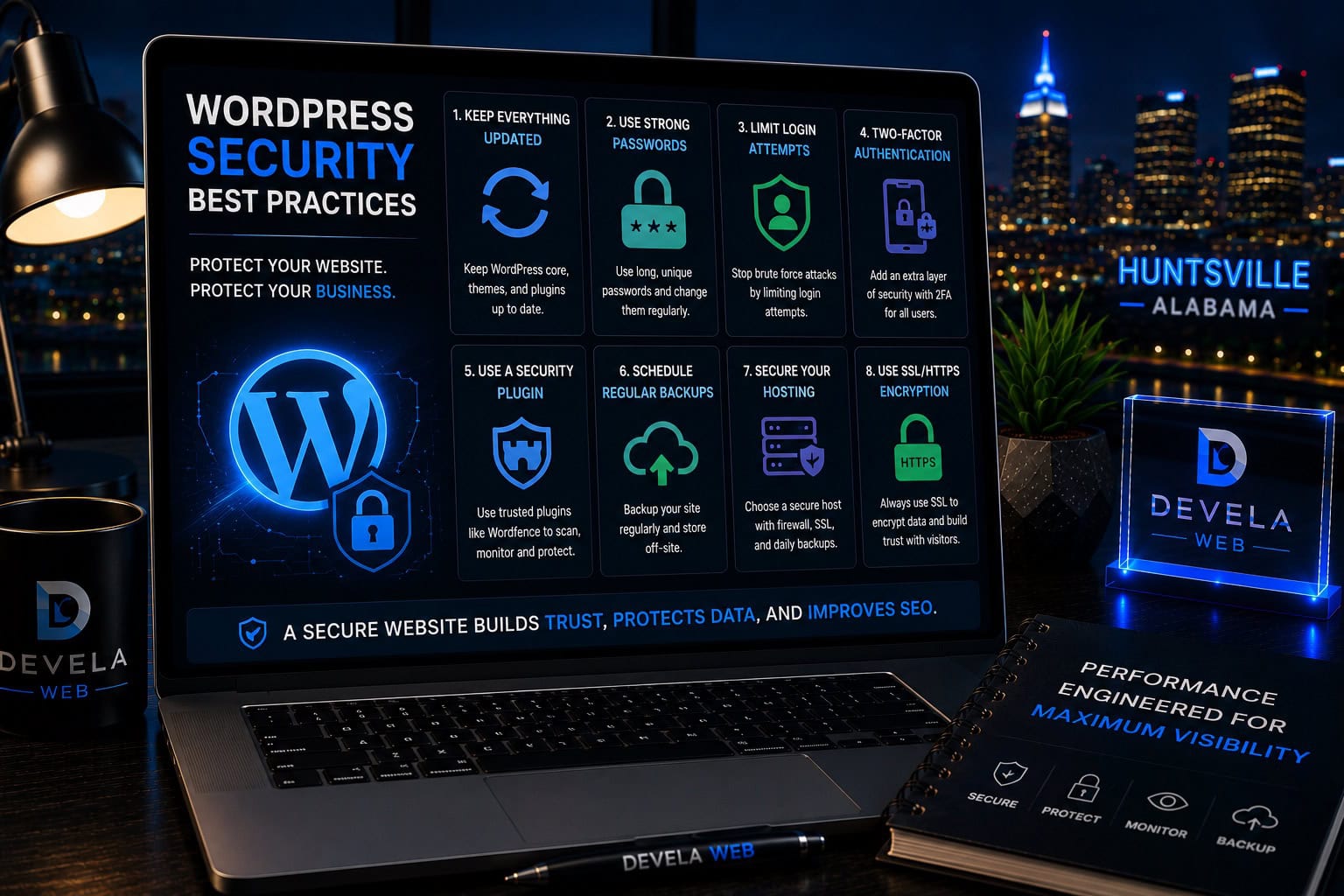
Security begins with good hosting, updates, strong passwords, limited administrator access, backups, and two-factor authentication. Security plugins can add monitoring, firewall, login, or scanning features, but they are only one part of the system.
Security priorities
Avoid installing several full security suites together. Overlapping firewalls, login controls, and scans can create conflicts or consume unnecessary server resources. Review our WordPress security best practices for a broader protection and maintenance plan.
Use Performance and Caching Tools That Match the Host
Performance plugins may provide page caching, browser caching, minification, delayed scripts, database cleanup, preload, or integration with a content delivery network.
Before installing a caching plugin
- Check whether the host already provides server caching.
- Confirm compatibility with ecommerce or membership features.
- Avoid overlapping cache systems.
- Change one major setting at a time.
- Clear all cache layers after testing.
- Verify forms, menus, and logged-in areas still work.
The best performance plugin depends heavily on the hosting stack. What works well on one server may be redundant or incompatible on another.
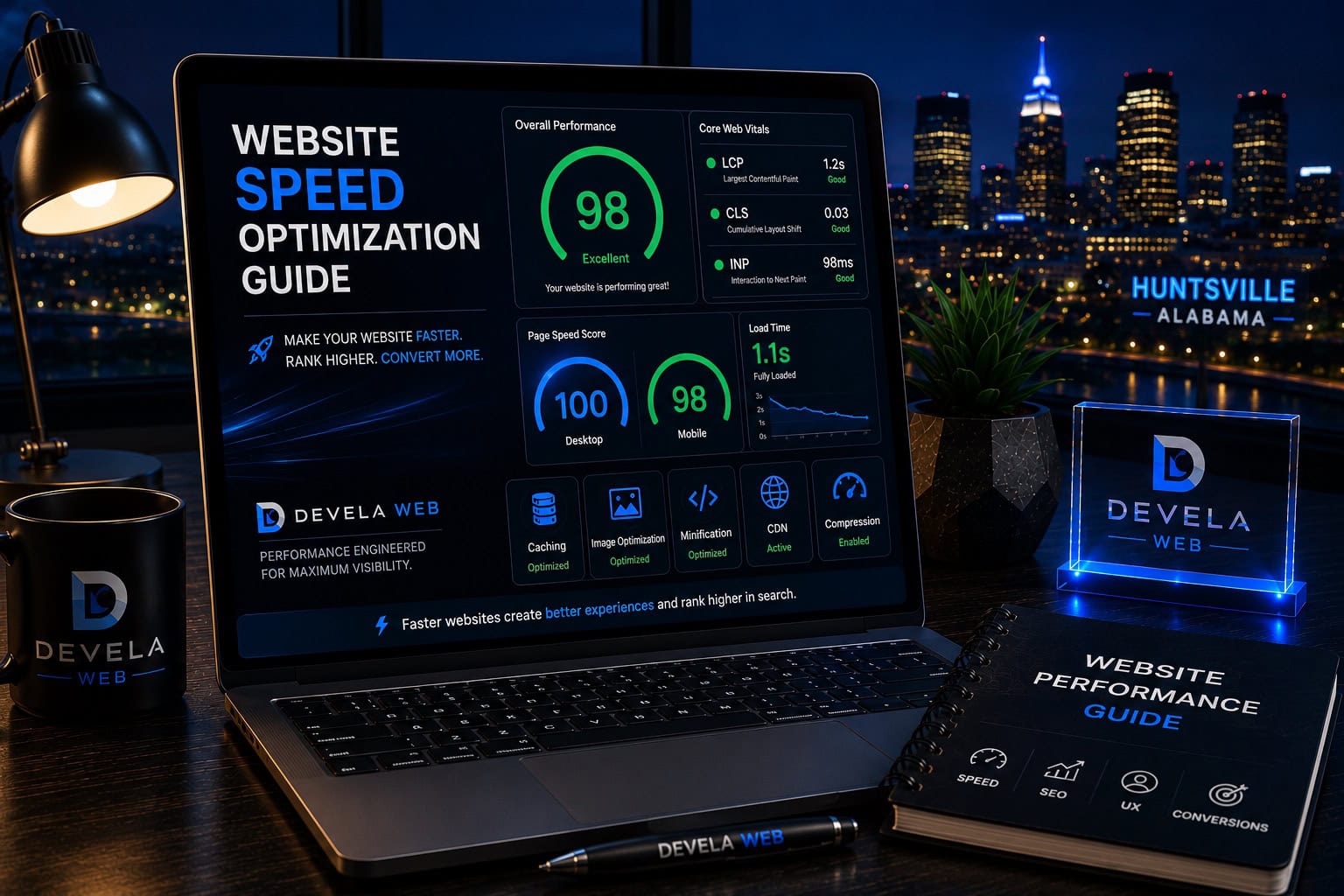
Review the complete website speed optimization guide before enabling aggressive optimization settings, especially when several caching, image, script, or CDN tools may overlap.
Optimize Images Before They Slow the Website Down
Image optimization plugins can compress uploads, create modern image formats, resize oversized files, and reduce unnecessary page weight.
Image optimization goals
ShortPixel is one example of an image optimization service commonly used with WordPress. Regardless of the tool, do not upload multi-megabyte images when the design only displays them at a modest size.
Add Analytics and Conversion Tracking Without Overloading the Site
Analytics helps businesses understand traffic, page engagement, lead sources, form submissions, calls, bookings, and other important actions.
Track outcomes that matter
- Contact form completions
- Click-to-call actions
- Appointment or booking completion
- Purchases or checkout events
- Traffic to important service pages
- Qualified leads by source
Use one clear tracking method. Several analytics, tag-management, and heatmap tools can add duplicate scripts, privacy obligations, and performance overhead.
Add Redirect or Schema Tools Only When Needed
Redirect tools help manage changed URLs and broken paths. Schema tools can add structured data for business, article, product, event, or other content types.
Do not install a separate schema plugin if the SEO plugin, theme, or custom code already produces the correct markup. Duplicate schema can make the page harder to understand.
The same principle applies to redirects. Use one documented system and test every important redirected URL after migrations or page changes.
How to Evaluate a WordPress Plugin
A plugin should be judged by more than its marketing page or feature count.
Plugin evaluation checklist
Review the plugin’s update history, support discussions, documentation, ownership, pricing model, data handling, and uninstall behavior. Premium price alone does not guarantee quality, and free does not mean inadequate.
The best plugin is not the one with the longest feature list. It is the one that solves the required problem reliably with the least unnecessary complexity.
A Practical WordPress Plugin Management Plan
Use a documented, conservative process so plugin changes do not create avoidable website problems.
- List every active plugin and its purpose.
- Identify overlapping or unused tools.
- Confirm which features the host and theme already provide.
- Create a complete backup before major changes.
- Update one important plugin at a time when risk is higher.
- Test forms, navigation, checkout, mobile layouts, and email.
- Remove abandoned and unnecessary plugins.
- Record premium license ownership and renewal dates.
- Review the plugin stack at least several times per year.
Build a Simpler, Safer Plugin Stack
Devela Web helps businesses review WordPress plugins, remove unnecessary tools, improve forms and email delivery, strengthen performance, and create a more maintainable website.
Explore Website CareCommon Questions About WordPress Plugins
These are common questions business owners ask when selecting and maintaining WordPress plugins.
How many WordPress plugins should a business website have?
There is no universal number. A smaller set of efficient, well-maintained plugins is usually easier to manage, but plugin quality and function matter more than raw count.
Do too many plugins slow down WordPress?
They can, especially when plugins load large scripts, repeat the same function, make heavy database requests, or run on every page. A few poorly built plugins can cause more trouble than many efficient ones.
Are free WordPress plugins safe?
Many free plugins are reliable. Review maintenance history, compatibility, documentation, ownership, permissions, support, and reputation before installation.
Should I delete inactive plugins?
Remove inactive plugins that are no longer needed after confirming they do not contain required data or functionality. Keeping unnecessary software increases maintenance and security exposure.
Do I need both a backup plugin and host backups?
Independent backup layers can be valuable. Confirm exactly what the host backs up, how long backups are retained, and how restoration works before relying on one system.
Should every website use a security plugin?
Not necessarily. Some hosts provide strong firewalls, monitoring, backups, and malware protection. Every site still needs secure access, updates, backups, and sensible user permissions.
How often should plugins be reviewed?
Review the active plugin stack periodically and after major redesigns, migrations, host changes, or feature removals. Remove tools that no longer serve a clear purpose.

Devela Web Editorial Team
The Devela Web Editorial Team creates practical, research-based resources covering WordPress, website maintenance, SEO, web design, website performance, Google Business Profile optimization, and conversion-focused digital strategy for Huntsville and North Alabama businesses.
- WordPress Plugin Strategy
- Website Maintenance and Security
- Website Performance Optimization
- SEO-Focused Website Planning